Showing posts with label tricks. Show all posts
Showing posts with label tricks. Show all posts
Thursday, January 12, 2017
007 Administrative Power Tricks
007 Administrative Power Tricks
Administrative Power Tricks
Welcome to bcdalai’s Document download. Part-04.
Last updated on: 8th July 2008
Hello users and bloggers. From bcdalai’s archives you will get some best tech info and some new Tips & Tricks for windows. The documents will be updated whenever there is new information will be available.
About this: This document contains several commands and tips for administrator windows user for troubleshooting everyday computing issues. Use this guide at your own risk, contain no warranty.
Example of the contents:
Restoring “Show Desktop” icon in Quick Launch:
regsvr32 /i:u shell32
Installing/Repairing “Compressed Folder” component in Windows XP:
regsvr32 zipfldr.dll
Windows Activation Status:
Command at command prompt oobe/msoobe /a or %SystemRoot%system32oobemsoobe.exe /a
Creating Restricted Folders in Windows XP:
Some folder names are restricted in Windows XP. You can’t create a new folder or rename existing folders to these names. Both upper and lower cases are restricted. These are: Con; Prn; lpt0; lpt1; lpt2; lpt3; lpt4; lpt5; lpt6; lpt7; lpt8; lpt9; Com0; Com1; Com2; Com3; Com4; Com5; Com6; Com7; Com8; Com9 etc.
Show Windows version on Desktop.
Registry Tweaks (Paste the following text (in red) into a text file and save as “ShowVersionOnDesktop.reg” and double click to add into the registry.):
Windows Registry Editor Version 5.00
[HKEY_CURRENT_USERControl PanelDesktop]
"PaintDesktopVersion"=dword:00000001
[HKEY_CURRENT_USERControl PanelDesktop]
"PaintDesktopVersion"=dword:00000001
------------------------------------------------------------
Download PDF version of this article from the link below:
Download PDF version of this article from the link below:
http://www.box.net/shared/9tavl3kr2y
Author: bcdalai
---------------------------------------------------------------------------
Available link for download

Friday, December 23, 2016
10 Time Saving Shortcuts Tricks Part 1 Speed Up Tedious Tasks
10 Time Saving Shortcuts Tricks Part 1 Speed Up Tedious Tasks

Important Key combinations to do some important tasks without go through long menus. Boost your working efficiency to doing some tedious task on your PC. Microsoft windows have a lot of shortcuts key combination, but it is not possible to remember all shortcuts. therefore I am providing selected shortcuts To make an impression on your boss, coworkers and friends.
SHIFT + F3
You have just finished typing a long paragraph without look up on the screen, and when you seen on the screen. You Amaze and realize that Caps Lock is ON.
Now what are you doing ?
Choose long way and typing all out again. Stop..... and try this.
Just select the text or paragraph, hold down the shift key and press F3 key to return text to capitalize the first letter of every word, press the shortcut again to all lower case and again hit the shortcut to return to upper case. This trick work in microsoft word and powerpoint. dont work in notepad.

SPACEBAR
Can you use mouse wheel to scroll a webpage or ebook for reading. Just STOP and use SPACEBAR to go down the screen and hit SHIFT + SPACEBAR to go up the screen. This is right time to replace your mouse wheel to SPACEBAR.
Window Key ( ) + 1,2,3....
Are you working on multiple programs simultaneously in windows ? If, Yes then this shortcut is very useful for you. first of all open all program on which you want to work concurrently. they all applications are shown in taskbar at bottom.
Now hold the key and press 1 to open the first program from the left hand side on the taskbar. Press + 2 to open second program and so on.
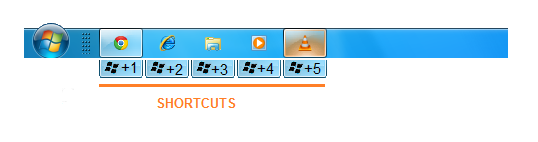
key and press 1 to open the first program from the left hand side on the taskbar. Press + 2 to open second program and so on.Note: Dont use NumLock Keys, they dont work.
Note: Pinned program in taskbar also considerable as an open program.
CTRL + SPACEBAR
Some time you need to copy text content from web and other sources and paste it into microsoft word to do your job. But problem is, "How to remove unwanted formatting like web links, bold, Italic, Underline, or any color combination." The solution is, "Select text content and remove all formatting by using CTRL + SPACEBAR."
CTRL + 1,2,3.....
This shortcut is useful for who, that work on multiple tabs in browser like Chrome, Firefox, IE etc. In Browser all Tabs are numbered from left to right by 1,2,3 and so on. Use this shortcut for switching between tabs in browser. Just think you work on first tab of your browser and want to go on fifth tab, press CTRL + 5 to go to on fifth tab.
ALT+ TAB
The simplest way to switching among multiple applications during working on PC. Use ALT + TAB key combination. When you press ALT + TAB, a short window will appear. then just hold down the ALT key and press TAB key alternatively to switching between windows. Use more variation of this shortcut using ALT + CTRL + TAB and + TAB.
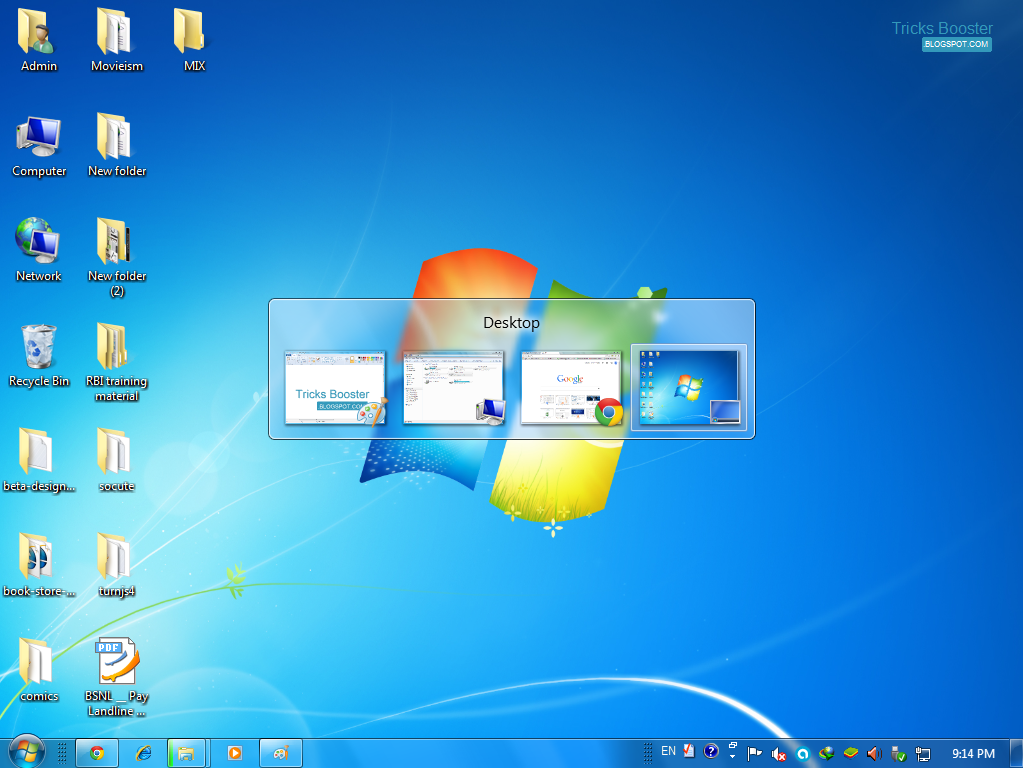
+ TAB.Window Key () + Arrow Keys
Useful shortcut for onscreen open windows management. window management means you can adjust open windows according to your requirement. This is mainly useful when you need to compare to documents.
To adjust open browser(or any window) in left side Just hold down the window key and press left arrow key.To adjust another window screen in right side hold down the window key and press right arrow key.
You can also use + UP arrow key for maximize the window and use + DOWN arrow key to minimize the current window.
+ UP arrow key for maximize the window and use + DOWN arrow key to minimize the current window.F2 Key
What are you think about F2 key ? Just Rename selected file. No, It is more than to rename a selected file.
For example : you have captured a lot of photos with your new camera and than transfer all photos into your computer. they all photos have default name like DSC34823 that you dont like. now you want to rename all photos.
Can you rename all photos one by one. STOP and do this -
Select All photos that you want to rename than press F2 key and type a name that you want to seen after rename and press ENTER. now all photos have your type name as a prefix and use integer as a postfix.
Window Key () + plus sign (+)
Commonly all smart phone user swap two finger to Zoom In or Zoom Out screen. If you want to do this task on computer than what you do? Now use + Plus Sign or Minus Sign ( + +) to Enlarge your display screen or reduce it.
+ Plus Sign or Minus Sign ( + +) to Enlarge your display screen or reduce it.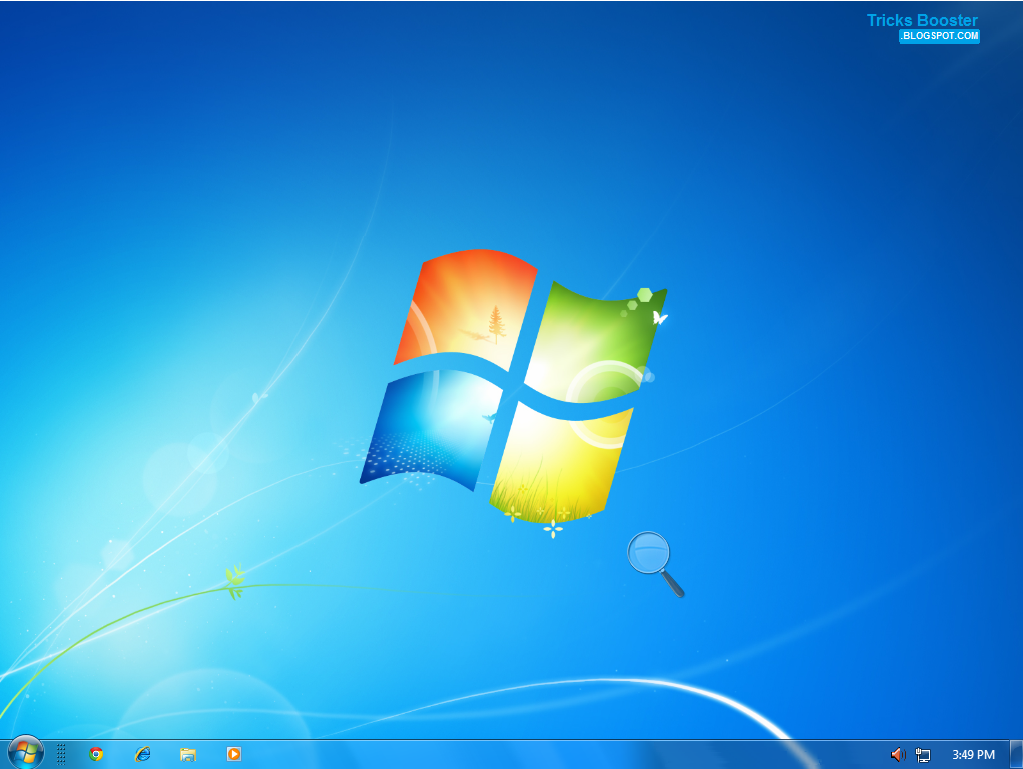
CTRL + K
Some time you want to connect a word to web using hyperlink. when you build a hypertext, many time you search how to add hyperlink, but you unable to find the option to create hyperlink. CTRL + K is a shortcut to add or remove hyperlink on a selected text.
Well these are my some best time saving shortcuts which are very helpful for me, and I’m sure it will helpful for you too. They’ll shortcuts change your working experience.
What other Shortcuts do you use for saving your time ? I would exciting to read your experience in comments.
Available link for download
Wednesday, September 7, 2016
10 Brilliant Command Prompt CMD Tricks You Probably Don’t Know About
10 Brilliant Command Prompt CMD Tricks You Probably Don’t Know About
 While talking about the 15 amazing Run Box commands the other day, I mentioned how both Run Box and Command Prompt are treated as a bit nerdy. Well, one might work on Windows without even touching the Run box but you cannot run away from Command Prompt (cmd). No matter how good Windows may evolve on the GUI front, Command Prompt (or more accurately, the Command Line ) was how it all began.
So here are some great tips you can use to make yourself comfortable while working with the Command Prompt. First things first, the shortcut for Command Prompt is cmd and that’s all you need to type in the Run box or the Start search in order to bring it up. Now on to the cool tricks, which might be known ones for the geeky ones among you, but on the other hand, have the potential to incite the a-ha moment for many other everyday computer users among you.
Let’s roll, shall we?
1. Open Command Prompt in a Folder
When you open the command prompt, it opens up in either User or System folder depending upon whether you ran it as administrator or not. Now the thing is, if you want to execute a file in any particular folder, you would have to use the change directory(cd) command to navigate to the folder which can be a problem if the directory is nested way too deep.

To ease things you can open the folder in your Windows Explorer, hold Shift key when you right-click in the folder and select Run command window here to directly open the CMD prompt with the path to that folder directly.
2. Enable QuickEdit for Easy Copy/Paste
One thing I miss the most in Command Prompt is the ability to easily copy and paste text using the conventional Windows hotkeys. Normally, one would have to use the right-click context menu options to copy and paste text, but if you enable QuickEdit, you can do them using simple shortcuts.

To enable the QuickEdit mode, right-click on the Command Prompt Title Bar and select Properties. In the Properties Window under the Option Tab enable QuickEdit Mode. That’s all; you can now quickly select text by dragging your mouse pointer. Pressing the enter key on the selected text will copy the text to the clipboard, and a simple left click would be enough to paste the text.
3. Run Command Prompt as Admin
Many commands require you to run command prompt as administrator. When you search for CMD in Start Menu, other than selecting Run as administrator from the right-click menu, you can simply press Ctrl+Shift+Enter to open it with admin privileges. This trick will work for all the programs installed on your system.
4. See Command History
You can see last used commands in a session using the navigation buttons, but if you would like to see a list of all the commands, you can get it by pressing the F7 button.

Alternatively, you can use the command doskey /history to list these commands in the command prompt itself.

5. Change Command Prompt Looks

Are you bored with the conventional black-and-white looks of the command prompt and would like to paint it different? We have already covered a guide on how you can customize your command prompt which you can refer to make the changes.
6. Copy Commands Output to Clipboard Directly
Sometimes one might want to copy the output from a command to clipboard, like at times when you get an error, and you want to paste the exact error in email or while chatting with someone.
To store a command output to a clipboard add the command | clip at the end of the command. For e.g. Dir /p | clip
7. Drag and Drop Files to Change Path
If you are already in command prompt, and you want to copy the exact path to a folder or file to run the file or change the present working directory, you can simply drag and drop the file or the folder on the command prompt.
The path of the dropped file or folder will show up in quotes.
8. Run Commands Simultaneously
You can put && between two commands and execute them one after another. The command on the left will execute first followed by the command on the right of the double ampersand.
9. Get Help for Command

Well let’s say you know about a command, but you are not sure how it works. Not a problem, all you need to do is suffix the command with /? and execute it. If the command is valid, the command prompt will give you all the information related to it.
10. Watch Star Wars in ASCII

For all my nerdy friends who are diehard fans of Star Wars, you can actually watch the Star Wars Episode IV movie in the command prompt. Though it would be in ASCII, it will be fun. To start the movie, open command prompt, type in telnet towel.blinkenlights.nl. and press enter. Don’t forget the popcorns though 
Recevie Our posts Directly to your in inbox ! Signup for our Email News Letter . Click here to Signup.
Get your own favorite tip published! Know a neat tech tip or trick? Then why not have it published here and receive full credit? Click here to tell us your tip.
Available link for download
Subscribe to:
Posts (Atom)