Showing posts with label shortcuts. Show all posts
Showing posts with label shortcuts. Show all posts
Friday, December 23, 2016
10 Time Saving Shortcuts Tricks Part 1 Speed Up Tedious Tasks
10 Time Saving Shortcuts Tricks Part 1 Speed Up Tedious Tasks

Important Key combinations to do some important tasks without go through long menus. Boost your working efficiency to doing some tedious task on your PC. Microsoft windows have a lot of shortcuts key combination, but it is not possible to remember all shortcuts. therefore I am providing selected shortcuts To make an impression on your boss, coworkers and friends.
SHIFT + F3
You have just finished typing a long paragraph without look up on the screen, and when you seen on the screen. You Amaze and realize that Caps Lock is ON.
Now what are you doing ?
Choose long way and typing all out again. Stop..... and try this.
Just select the text or paragraph, hold down the shift key and press F3 key to return text to capitalize the first letter of every word, press the shortcut again to all lower case and again hit the shortcut to return to upper case. This trick work in microsoft word and powerpoint. dont work in notepad.

SPACEBAR
Can you use mouse wheel to scroll a webpage or ebook for reading. Just STOP and use SPACEBAR to go down the screen and hit SHIFT + SPACEBAR to go up the screen. This is right time to replace your mouse wheel to SPACEBAR.
Window Key ( ) + 1,2,3....
Are you working on multiple programs simultaneously in windows ? If, Yes then this shortcut is very useful for you. first of all open all program on which you want to work concurrently. they all applications are shown in taskbar at bottom.
Now hold the key and press 1 to open the first program from the left hand side on the taskbar. Press + 2 to open second program and so on.
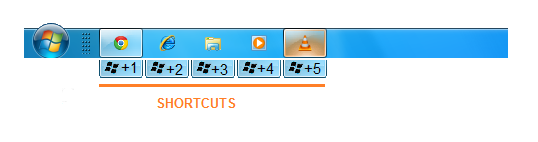
key and press 1 to open the first program from the left hand side on the taskbar. Press + 2 to open second program and so on.Note: Dont use NumLock Keys, they dont work.
Note: Pinned program in taskbar also considerable as an open program.
CTRL + SPACEBAR
Some time you need to copy text content from web and other sources and paste it into microsoft word to do your job. But problem is, "How to remove unwanted formatting like web links, bold, Italic, Underline, or any color combination." The solution is, "Select text content and remove all formatting by using CTRL + SPACEBAR."
CTRL + 1,2,3.....
This shortcut is useful for who, that work on multiple tabs in browser like Chrome, Firefox, IE etc. In Browser all Tabs are numbered from left to right by 1,2,3 and so on. Use this shortcut for switching between tabs in browser. Just think you work on first tab of your browser and want to go on fifth tab, press CTRL + 5 to go to on fifth tab.
ALT+ TAB
The simplest way to switching among multiple applications during working on PC. Use ALT + TAB key combination. When you press ALT + TAB, a short window will appear. then just hold down the ALT key and press TAB key alternatively to switching between windows. Use more variation of this shortcut using ALT + CTRL + TAB and + TAB.
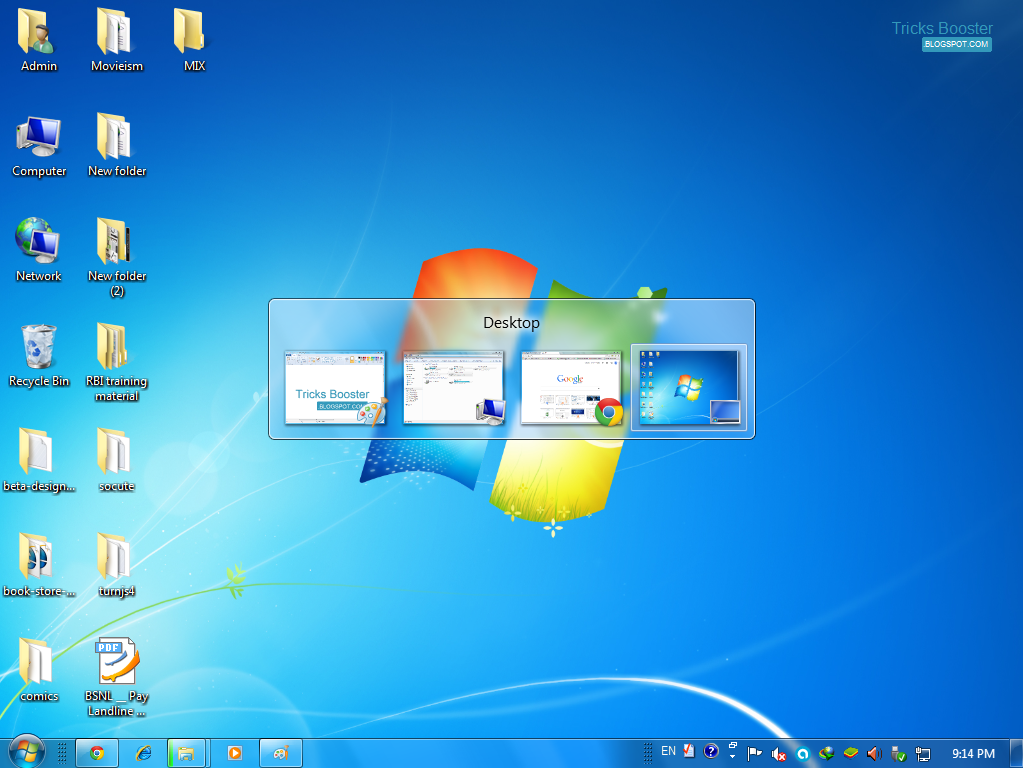
+ TAB.Window Key () + Arrow Keys
Useful shortcut for onscreen open windows management. window management means you can adjust open windows according to your requirement. This is mainly useful when you need to compare to documents.
To adjust open browser(or any window) in left side Just hold down the window key and press left arrow key.To adjust another window screen in right side hold down the window key and press right arrow key.
You can also use + UP arrow key for maximize the window and use + DOWN arrow key to minimize the current window.
+ UP arrow key for maximize the window and use + DOWN arrow key to minimize the current window.F2 Key
What are you think about F2 key ? Just Rename selected file. No, It is more than to rename a selected file.
For example : you have captured a lot of photos with your new camera and than transfer all photos into your computer. they all photos have default name like DSC34823 that you dont like. now you want to rename all photos.
Can you rename all photos one by one. STOP and do this -
Select All photos that you want to rename than press F2 key and type a name that you want to seen after rename and press ENTER. now all photos have your type name as a prefix and use integer as a postfix.
Window Key () + plus sign (+)
Commonly all smart phone user swap two finger to Zoom In or Zoom Out screen. If you want to do this task on computer than what you do? Now use + Plus Sign or Minus Sign ( + +) to Enlarge your display screen or reduce it.
+ Plus Sign or Minus Sign ( + +) to Enlarge your display screen or reduce it.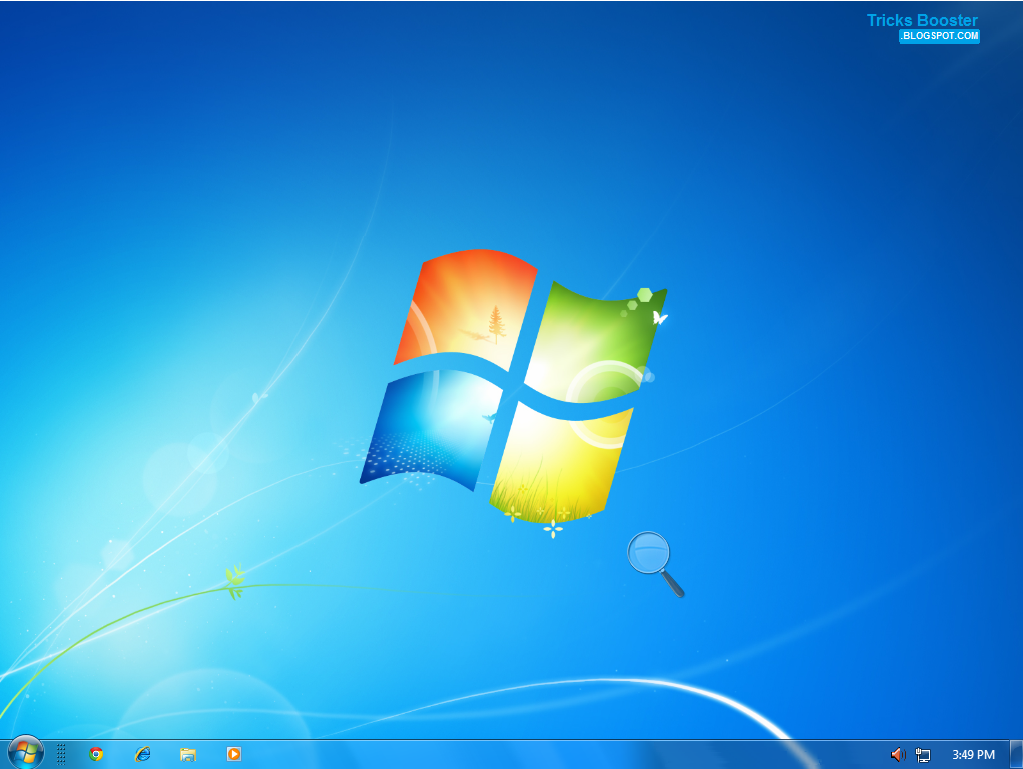
CTRL + K
Some time you want to connect a word to web using hyperlink. when you build a hypertext, many time you search how to add hyperlink, but you unable to find the option to create hyperlink. CTRL + K is a shortcut to add or remove hyperlink on a selected text.
Well these are my some best time saving shortcuts which are very helpful for me, and I’m sure it will helpful for you too. They’ll shortcuts change your working experience.
What other Shortcuts do you use for saving your time ? I would exciting to read your experience in comments.
Available link for download

Sunday, December 11, 2016
Wondering How To Hide Your Apps And Website Shortcuts in An Invisible Folder On Your iPhone And iPad
Wondering How To Hide Your Apps And Website Shortcuts in An Invisible Folder On Your iPhone And iPad
In this article we are gonna show you how to create an invisible folder to hide your apps and website shortcuts. You does not need a jailbroken device. All you need is to follow these steps. Click here to continue reading
Available link for download
Monday, September 5, 2016
Windows keyboard shortcuts overview and complete list
Windows keyboard shortcuts overview and complete list
Windows keyboard shortcuts

Keyboard shortcuts are alternative to the mouse when working in Windows. You can open, close, and navigate the Start menu, desktop, menus, dialog boxes, and Web pages using keyboard shortcuts. Keyboard shortcuts may also make it easier and faster for you to interact with your computer.
General Keyboard Shortcuts
Press | To | |
CTRL+C | Copy. | |
CTRL+X | Cut. | |
CTRL+V | Paste. | |
CTRL+Z | Undo. | |
DELETE | Delete. | |
SHIFT+DELETE | Delete selected item permanently without placing the item in the Recycle Bin. | |
CTRL while dragging an item | Copy selected item. | |
CTRL+SHIFT while dragging an item | Create shortcut to selected item. | |
F2 | Rename selected item. | |
CTRL+RIGHT ARROW | Move the insertion point to the beginning of the next word. | |
CTRL+LEFT ARROW | Move the insertion point to the beginning of the previous word. | |
CTRL+DOWN ARROW | Move the insertion point to the beginning of the next paragraph. | |
CTRL+UP ARROW | Move the insertion point to the beginning of the previous paragraph. | |
CTRL+SHIFT with any of the arrow keys | Highlight a block of text. | |
SHIFT with any of the arrow keys | Select more than one item in a window or on the desktop, or select text within a document. | |
CTRL+A | Select all. | |
F3 | Search for a file or folder. | |
ALT+ENTER | View properties for the selected item. | |
ALT+F4 | Close the active item, or quit the active program. | |
ALT+Enter | Displays the properties of the selected object. | |
ALT+SPACEBAR | Opens the shortcut menu for the active window. | |
CTRL+F4 | Close the active document in programs that allow you to have multiple documents open simultaneously. | |
ALT+TAB | Switch between open items. | |
ALT+ESC | Cycle through items in the order they were opened. | |
F6 | Cycle through screen elements in a window or on the desktop. | |
F4 | Display the Address bar list in My Computer or Windows Explorer. | |
SHIFT+F10 | Display the shortcut menu for the selected item. | |
ALT+SPACEBAR | Display the System menu for the active window. | |
CTRL+ESC | Display the Start menu. | |
ALT+Underlined letter in a menu name | Display the corresponding menu. | |
Underlined letter in a command name on an open menu | Carry out the corresponding command. | |
F10 | Activate the menu bar in the active program. | |
RIGHT ARROW | Open the next menu to the right, or open a submenu. | |
LEFT ARROW | Open the next menu to the left, or close a submenu. | |
F5 | Refresh the active window. | |
BACKSPACE | View the folder one level up in My Computer or Windows Explorer. | |
ESC | Cancel the current task. | |
SHIFT when you insert a CD into the CD-ROM drive | Prevent the CD from automatically playing. | |
Dialog Box Keyboard Shortcuts
Press | To | |||
CTRL+TAB | Move forward through tabs. | |||
CTRL+SHIFT+TAB | Move backward through tabs. | |||
TAB | Move forward through options. | |||
SHIFT+TAB | Move backward through options. | |||
ALT+Underlined letter | Carry out the corresponding command or select the corresponding option. | |||
ENTER | Carry out the command for the active option or button. | |||
SPACEBAR | Select or clear the check box if the active option is a check box. | |||
Arrow keys
Read more »
Available link for download
Subscribe to:
Posts (Atom)
| ||||